Basic scraping
Perform basic web scraping using the browser's developer tools
The way of kata
Kata is an exercise for muscle memory. It's not intended to fill your brain with information but train your fingers to react. The information is there to give you the why, but your fingers need to learn the how.
The material on this page is presented in a specific order — from least specific to highly technical. You will learn the most by jumping in as soon as you have some idea of what you should do. Once you're done, read the rest of the material and check your solution.
All katas are designed to be doable without using 3rd party libraries (and, in fact, the point is to also learn how to do what these libraries do).
To make the best of katas, observe the following rules.
- Don't rush.
- When stuck, take a break and do something unrelated.
- Do not copy/paste code. Always retype everything.
- Do not use AI tools to generate code.
- Try to do something that wasn't in the instructions, experiment.
- Repeat the kata from time to time, even if you think you've got it.
- You have mastered the kata once you are able to complete it without thinking too much.
Remember, the goal is not to get it done, but to get some practice.
Introduction
In this exercise, you will practice basic web scraping using just the browser's developer tools.
Skills you will acquire
- Analyzing the page structure
- Locating elements
- Generating an object URL
- Generating a data URL
- Triggering file downloads programmatically
- Cleaning data
Objective
- Create an object that maps extensions to their media types based on the provided page
- Download the object as a JSON file
Check your solution
- Copy the downloaded JSON into the developer tool and check that it can be parsed without errors
Materials
Keep in mind
Media type is also know as MIME type. These terms are synonyms.
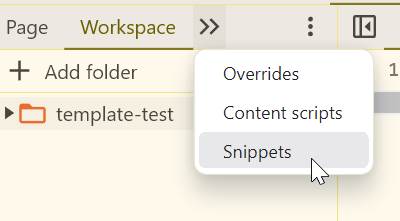
To execute a larger script on the page, you will probably want to write the code in multi-line format rather than execute it one line at a time. In Chrome and Chrome-based browsers, the Snippets feature can come in handy. You can find it under the Sources tab in dev tools.
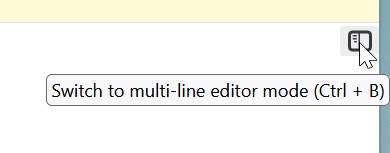
In firefox, there is a multi-line mode that is activated by clicking the icon to the far-right or using the Ctrl+B (Cmd+B) shortcut.
The first thing you want to do is identify the selector that you can use to uniquely identify either the table containing the necessary information or its rows. You will then iterate through all the rows and grab the extension and media type.
The use case for this data is looking up media type by file extension, so you want to create an object that can be used for that.
To trigger a download, you can simply trigger the click event on a link. This
can be done using the .click() method on the link node. This will activate the
default behavior of the link. You can set the href and download attributes
to define what this will do.
There are two ways to convert file contents into a URL that you can use with links. One is data URL and another is object URL. Try both approaches.
When verifying the output, you don't need to call JSON.parse() (though there
is nothing wrong with that). You can also simply paste the output into the
console and evaluate it as code. Keep in mind that every valid JSON string is
also valid JavaScript.
Reading list
click()(MDN)<a>(MDN)href(MDN)download(MDN)- Data URLs (MDN)
URL.createObjectURL()(MDN)JSON.stringify()(MDN)JSON.parse()(MDN)
Hints & spoilers
Spoiler: iterating table rows
In Chrome, you can right-click the element that you're wanting to reach, and in the menu yuo can select 'Copy' and then 'Copy JS Path'. This will copy to the clipboard some code that looks like this:
document.querySelector('#content > article > div > figure > table > tbody > tr:nth-child(1)')You can then tweak this code so you can iterate all rows. For example:
document.querySelectorAll('#content > article > div > figure > table > tbody > tr')